How to create a Hyperliquid account and apply a fee discount
Verified against Hyperliquid docs: How to start trading and Hyperliquid docs: Referrals · by Hyperliquid Academy
There is nothing to sign up for
This trips people up who come from centralised exchanges. There is no registration page, no password, no email confirmation and no identity check. Your account is your wallet address. The first time you connect, the exchange simply starts tracking state for that address.
That has a practical consequence worth internalising: whoever controls the wallet controls the account. There is no password reset and no support desk that can restore access. Back up your recovery phrase before you put money anywhere near it.
The one step you cannot redo
Referral codes attach once, and only before your first trade
A referral code can only be applied to a wallet that has not traded. Once your first order fills, the discount is unavailable on that address for good. This is the single reason to think about the order of operations before you rush in.
The discount is 4% off your trading fees, covering your first $25M of volume. It applies from your very first order, needs no volume history and no staked tokens, and it stacks with the volume tiers and staking discounts. It does not apply to vaults or sub-accounts, because the clearinghouse treats those as separate accounts.
We benefit if you use ours, and we would rather you understood the terms than clicked in a hurry. The full terms page lays out exactly what it does and does not cover.
Route one: connect a wallet
-
Install an EVM wallet
The wallet chooser names MetaMask, Brave Wallet, OKX Wallet and Coinbase Wallet, plus WalletConnect for anything else. Rabby is not listed by name because it takes over the injected-wallet slot: with Rabby installed, clicking MetaMask opens Rabby.
Record your recovery phrase on paper before continuing. Anyone with that phrase has your funds.
You should see a browser extension with a funded, backed-up wallet
-
Open the app through a referral link
Open the app through this link: it applies the code for you, and the app says so in as many words. If you see no such panel, you did not arrive through a referral link, and applying a code afterwards on the referrals screen still works right up until your first trade.
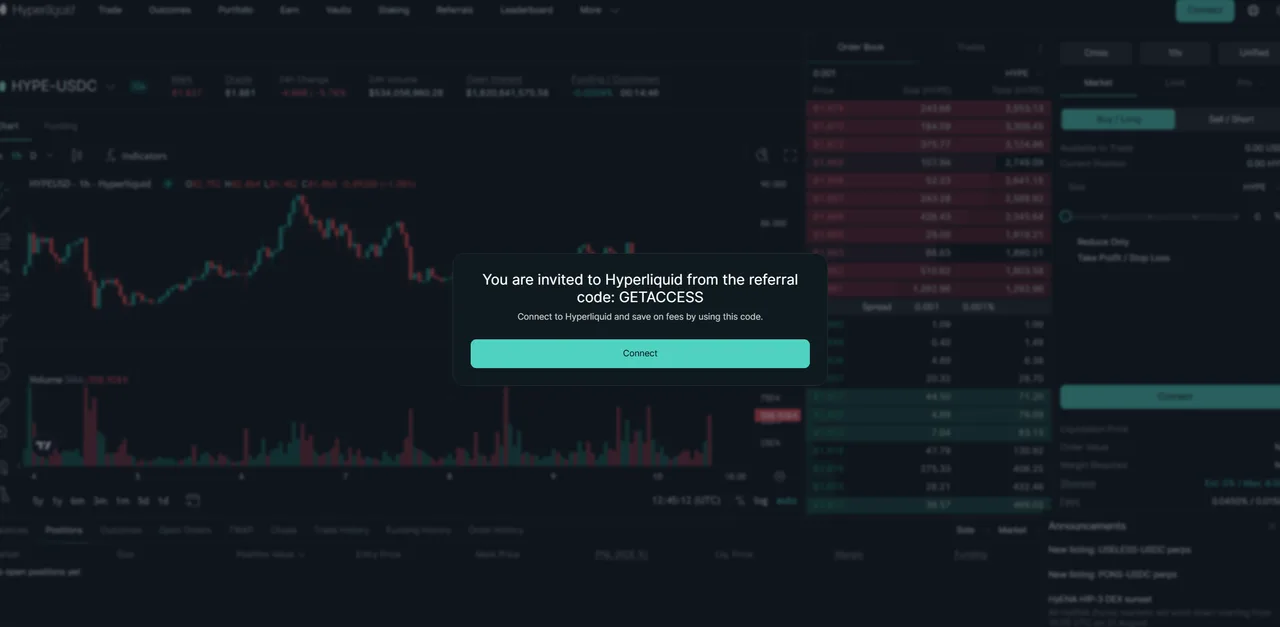
You should see a panel naming the code before you have connected anything
-
Click Connect and pick your wallet
Read the permission list rather than clicking through it. MetaMask states the three things plainly: it may see addresses and balances, it may send requests for transactions, and it cannot move funds without your permission. That third line is the whole answer to whether connecting is safe.
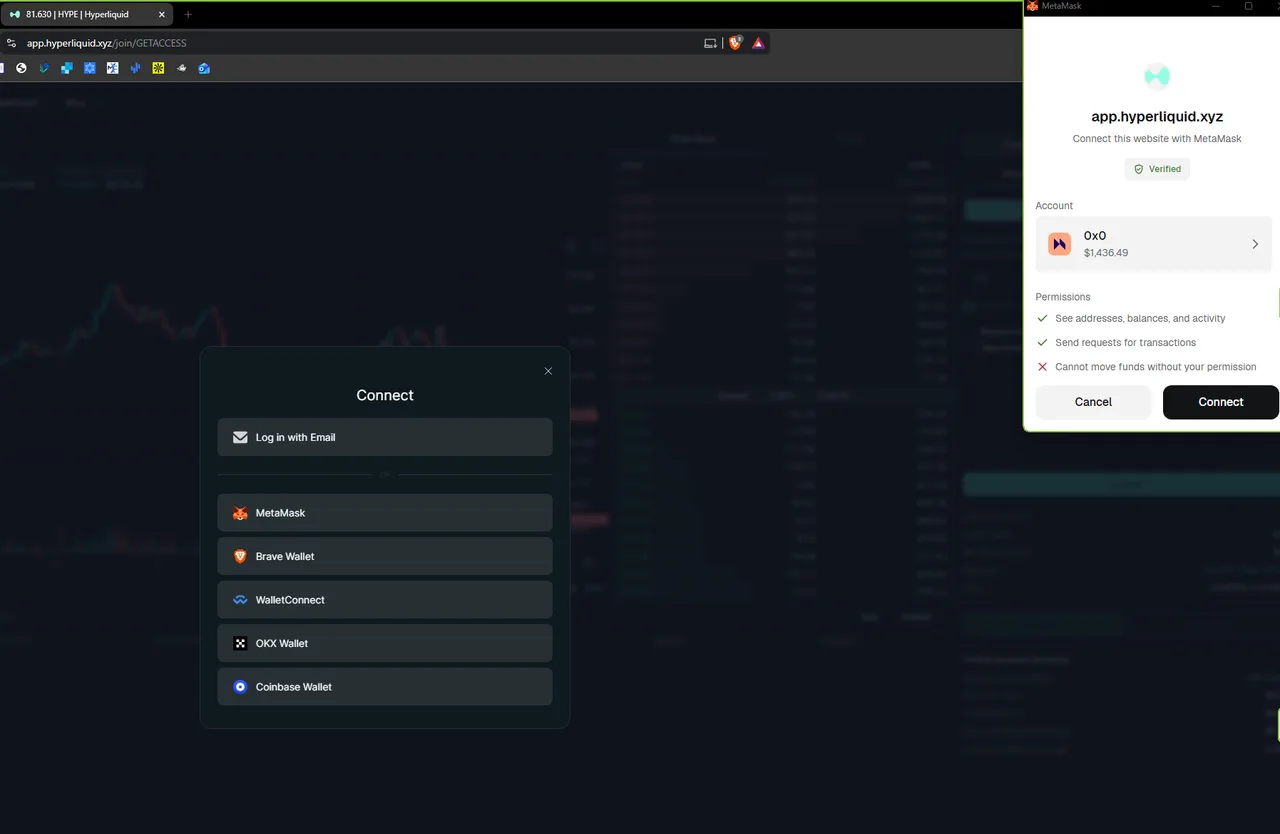
You should see a permission dialog listing what the site may and may not do
-
Accept the terms
Two separate checkboxes: one for the Terms of Use and Privacy Policy, one for the cookie policy. This is the step where the geographic restriction becomes a representation you are making, so it is worth reading if you are anywhere near a restricted jurisdiction.
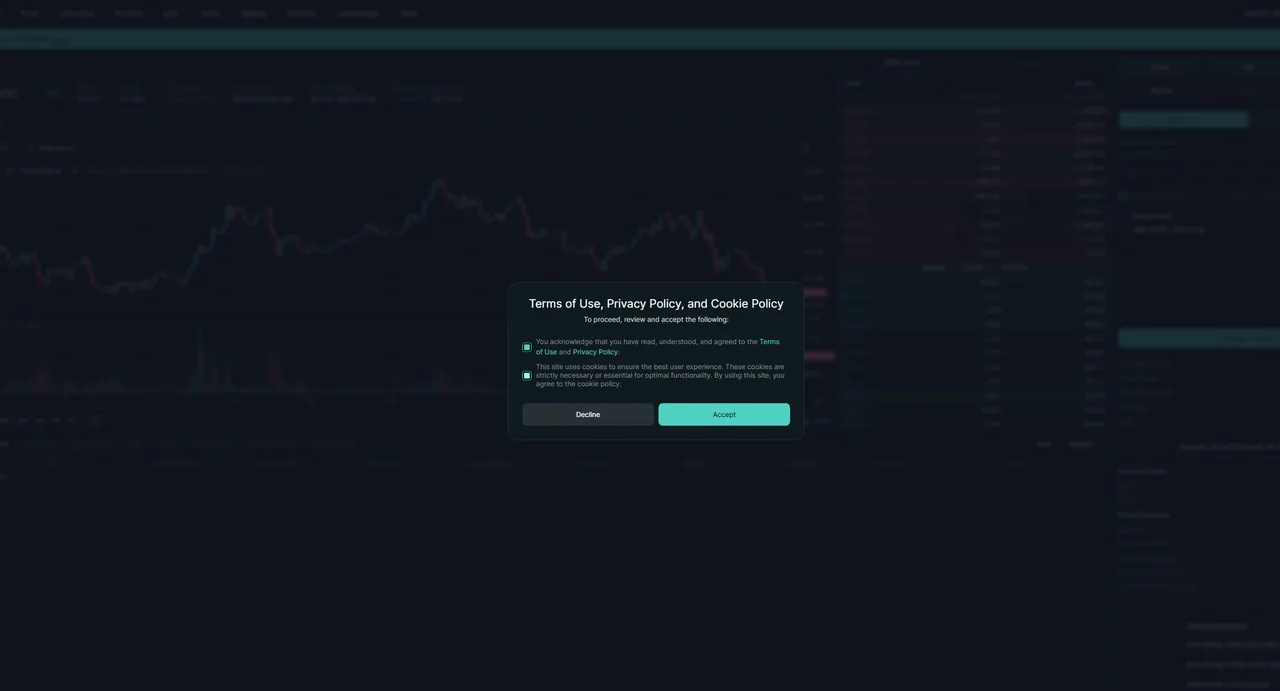
You should see both boxes ticked and the Accept button active
-
Sign the terms acceptance
Accepting is recorded as a signed message, not just a click. Check the primary type says
Hyperliquid:AcceptTermsand the request comes from app.hyperliquid.xyz. This costs no gas.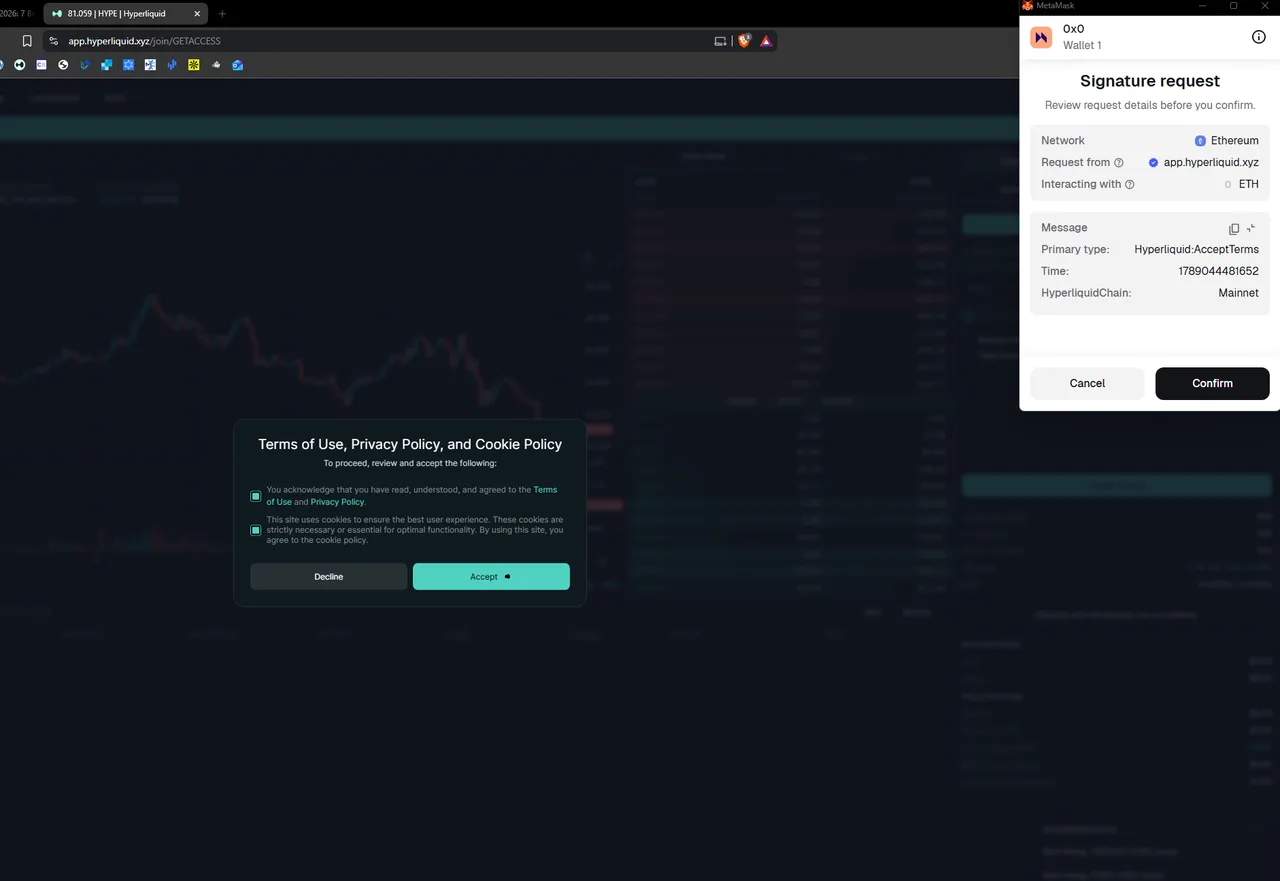
You should see a signature request whose primary type reads Hyperliquid:AcceptTerms
-
Establish the connection
The button is labelled Establish Connection, and the modal explains why it exists: it opens a channel for gas-free, instantaneous trading. Leave Stay Connected ticked unless you are on a shared machine.
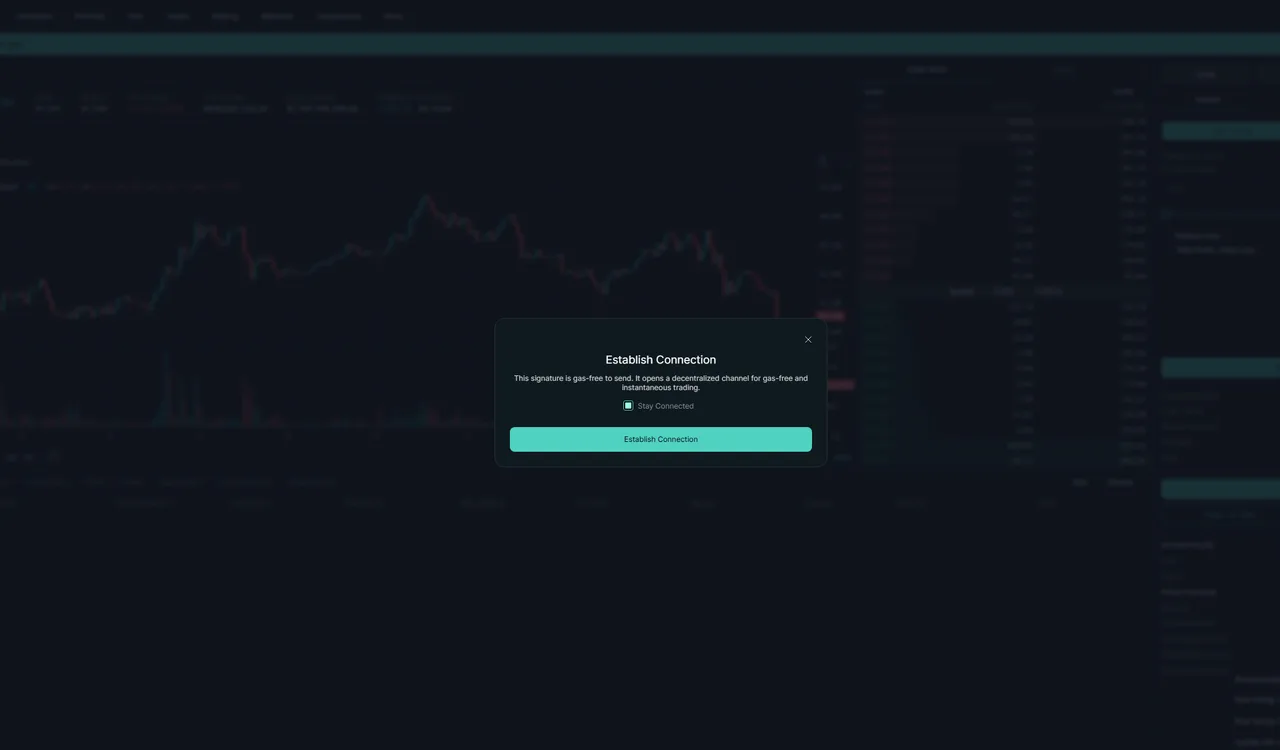
You should see a gas-free signature that opens the trading channel
-
Sign the agent approval
This is the one worth understanding. The primary type is
HyperliquidTransaction:ApproveAgentand it names an AgentAddress: a separate key that will submit your orders so you are not approving each one. It can place and cancel orders. It cannot withdraw.If a request at this point asks for a token approval or a transfer instead, you are not on the right site. Stop and check the domain.
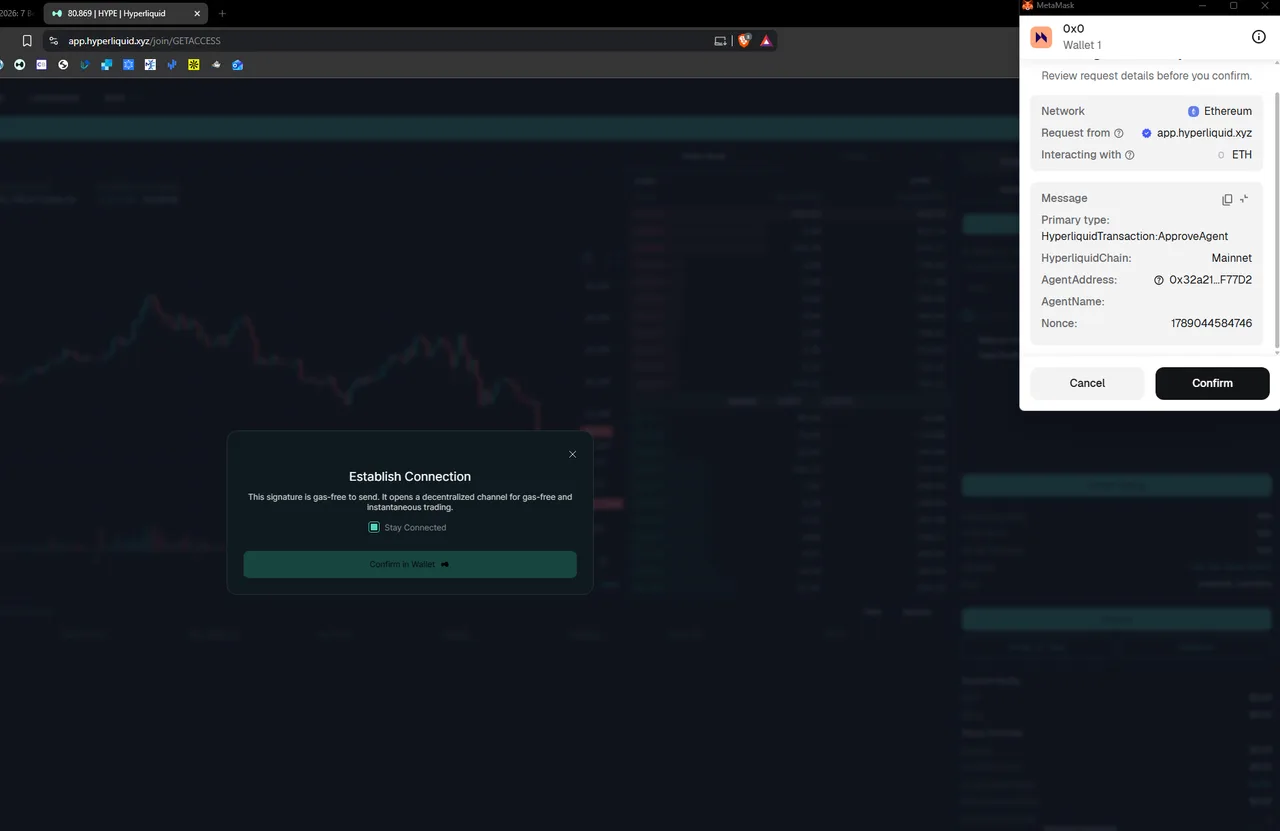
You should see a signature request of type ApproveAgent, naming an agent address
Route two: log in with an email address
Newer, and much less written about. Click Connect, enter an email address, and type the six-digit code that arrives. There is no signature step and no extension to install.
Behind the scenes this creates a wallet for you. You can export its key later, which matters: until you do, your access depends on continued access to that mailbox. Treat it as a convenient way to start rather than a long-term custody plan for a serious balance.
Which route to choose
| Wallet | Email login | |
|---|---|---|
| Setup time | Two to five minutes | Under a minute |
| Who holds the keys | You, from the start | Generated for you, exportable |
| Works with a hardware wallet | Yes | No |
| Good for | Any size, long term | Trying it out, small balances |
| Recovery if you lose access | Your recovery phrase | Access to the mailbox, then export |
Sub-accounts and vaults are separate accounts
Once you are set up you will see options for sub-accounts and vaults. Both are useful for keeping strategies apart, and both come with a catch on cost: the clearinghouse treats them as independent accounts, so a referral discount attached to your main address does not extend to them.
What comes next
Funding the account is the next step, and it now supports considerably more chains than most guides mention. If you are still choosing a wallet, our wallet comparison covers what each one does well.
Frequently asked questions
Do I need an email address to sign up?
Only if you choose the email login route. With a wallet, no email, username or password exists anywhere in the process.
Can I add a referral code later?
No. The code attaches to a wallet that has not traded. After your first fill it cannot be added, and there is no support process to change it.
Is there a sign-up bonus?
No. A referral code gives a 4% discount on trading fees for your first $25M of volume. It is a discount on costs, not a deposit bonus or free money.
What does the Establish Connection signature actually approve?
It registers an API-style agent so the interface can submit your orders without a wallet pop-up each time. It is gas-free and it does not grant permission to withdraw your funds.
Can I use the same wallet on my phone and desktop?
Yes. The account is the wallet address, so connecting the same wallet anywhere gives you the same account, positions and fee tier.
Sources
- Hyperliquid docs: How to start tradinghyperliquid.gitbook.io
- Hyperliquid docs: Referralshyperliquid.gitbook.io
We link the primary source for every number on this page. If a figure here disagrees with the Hyperliquid documentation, the documentation is right and we want to know.